Introduction to 3D with Direct3D Immediate Mode
A Few Words About Direct3D Immediate Mode
Every one of us has no doubt come across games that use 3-D graphics to a greater or lesser degree. On some folks they made a ripper impression, while on others they didn’t spark any particular fascination. Here we’re going to have a yarn about the basics of 3D graphics. The Direct3D library from Micro$oft makes the most of the available features of 3-D hardware in the most efficient way and lets you tap into all the hardware capabilities of a 3-D card that the manufacturer has put in. These capabilities differ from one another, although they share plenty of common ground. One way to rank them is the price difference — it’s well known that cheap cards will never support as many functions as the graphics “combine harvesters” used mostly in development work. Below I’ve put a short comparison of 3-D card capabilities pulled out using the 3DMark2000 program (the System Info option).
| MATROX MILLENIUM G400 AGP | ATI RAGE PRO (atir3) |
|---|---|
| 16-Bit Rendering 32-Bit Rendering 16-Bit Z-Buffer 32-Bit Z-Buffer 16-Bit Z-Buffer (1-Bit Stencil) 32-Bit Z-Buffer (8-Bit Stencil) 3 Textures in Single Pass Driver can disable VSync Subpixel Accuracy Point Sampling Point Sampling With Mip-Mapping Bilinear Filtering Bilinear Filtering With Mip-Mapping Trilinear Filtering Specular Gouraud Vertex Fog W-Fog Alpha Blending Vertex Alpha Blending Vertex And Texture Alpha Blending Additive Alpha Blending DX6 Bump Mapping Maximum texture resolution 2048x2048 | 16-Bit Rendering 32-Bit Rendering 16-Bit Z-Buffer Subpixel Accuracy Point Sampling Point Sampling With Mip-Mapping Bilinear Filtering Bilinear Filtering With Mip-Mapping Trilinear Filtering Specular Gouraud Vertex Fog W-Fog Alpha Blending Vertex Alpha Blending Vertex And Texture Alpha Blending Additive Alpha Blending Multiplicative Alpha Blending |
Direct3D has two modes: the so-called Immediate Mode and the so-called Retained Mode. The difference is mainly that Retained Mode has a swag of ready-made functions that come in handy for animating objects (like hierarchy) and shows high-level properties (high-level 3-D API). You can’t say the same of the first mode. It’s aimed at developers who want low-level control over their accelerator (low-level 3-D API). A bit of trivia: it’s actually the base on which Retained Mode was built. So programmers using Immediate Mode have to have broader knowledge of 3-D graphics, since they have to code up plenty of functions themselves that are already baked into Retained Mode from the get-go.
The basic building blocks of Immediate Mode are vertices and flat polygons, from which we build the whole 3-D world. Thanks to the functions available in the d3dim.lib library, which in turn call into the drivers of our graphics card, we get direct control over the rasterisation of 3-D graphics. We can control object translations in space, build light sources, move them about, control the camera, and so on. If your graphics card can’t do hardware rendering, Direct3D offers software rendering (the whole world is drawn and worked out by the CPU). Obviously this isn’t a great solution, but at least it lets folks who either don’t have an accelerator card, or want to see an effect their card doesn’t support (like bump mapping) get a peek at the tricks of Direct3D. I reckon programming with Immediate Mode can be compared to coding in assembler, where the coder/programmer has full control over what they want to do themselves, from scratch. That has its charms but also its drawbacks — well — the programmer is stuck with carefully looking after the right transformations for the right objects, and the right view and camera matrix setups. It would also help if they knew everything about what they’re rendering on (well — just like in the good old days).
What Direct3D Offers
- “flat” shading (Flat Shading)
- Gouraud shading (Gouraud Shading)
- light sources and their types
- textures, multitexturing and mipmapping
- transformations
- depth buffers (z-buffer or w-buffer)
- software emulation of rendering
- the ability to use MMX instructions
THE BASICS
Coordinate Systems
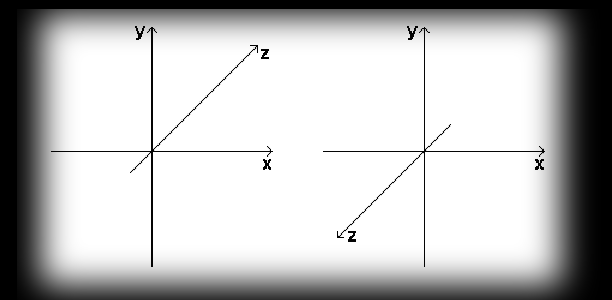
We ought to start with which coordinate system we’ll be using to describe three-dimensional objects. We distinguish two Cartesian coordinate systems: left-handed and right-handed. These systems consist of three axes called Ox, Oy and Oz, set at 90-degree angles to one another. Direct3D uses a left-handed coordinate system, that is one where it’s handy to look at it so the x axis runs horizontally from left to right, the y axis vertically from bottom to top, and the z axis perpendicular, heading away from you in the direction you’re looking. Both systems are shown in the diagrams below.
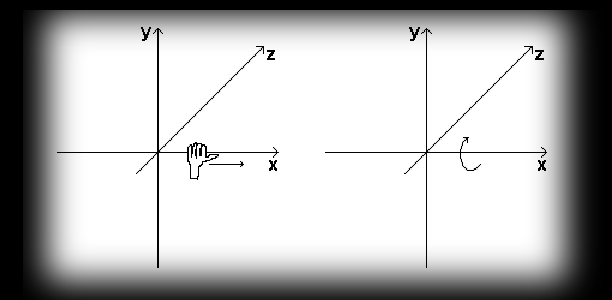
The term left-handed comes from using the left hand to describe rotation around an axis. If you point the thumb of your left hand in the direction of increasing values on the x axis, the fingers of that hand will curl in the positive direction of rotation. The diagram below illustrates this convention.
So what do you do if the system your data’s stored in is right-handed? Nothing easier: first, you need to flip the order of vertices in your triangles so vertices originally stored as: vertex0, vertex1, vertex2 become vertex0, vertex2, vertex1; and second, you need to scale the view matrix by -1 along the z axis.
Points and Their Positions
Why do we need a coordinate system? The answer’s pretty simple — because thanks to it we can read off the position of any point P in space. To do that in our left-handed system Oxyz we have to find the projections Px, Py, Pz of point P onto the Ox, Oy, Oz axes. Then the rectangular coordinates x, y, z of point P will be taken — with appropriate signs — as the lengths of the segments OPx, OPy, OPz. In maths there are various ways of writing the position of a point, e.g. the notation P=P(a,b,c) means that point P has coordinates x=a, y=b, z=c.
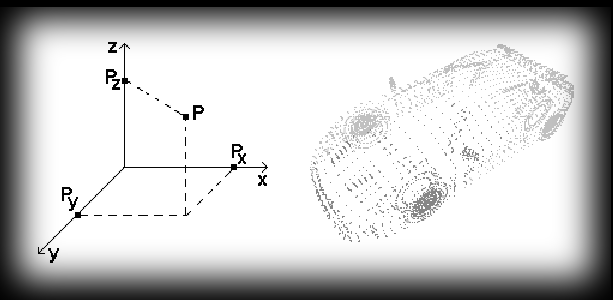
In what we’re getting up to, the point is the fundamental concept. It’s from points that we can build any 3-D object and the whole structure of our future “virtual” world. The image above shows a “point” model of a car — it may not look too crash-hot at this stage, but it can be the foundation of what later becomes, say, the main element of a car racing game :).
In C, a structure that gives us an image of a point in space could be set up something like this:
typedef struct
{
    float x, y, z;
} Punkt3D;
Now, using an array of such points, we can treat them as the vertices of “triangles” that form the surfaces of our model.
Vectors
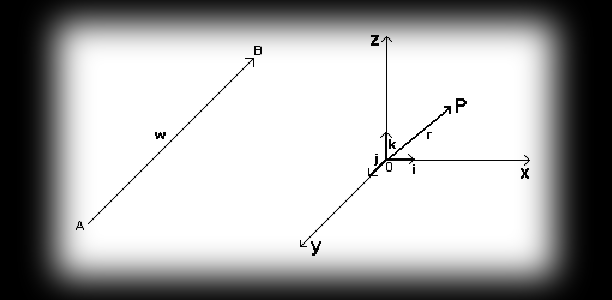
Vectors are line segments that have a defined length and a defined direction (in this piece vectors will be shown in bold, and their components will be given in square brackets, e.g. w=[x,y,z]). So, for instance, using the vector (OP) we can pinpoint the position of point P, whose start is the origin O and whose end is point P. Such a vector is called the position vector of point P and is denoted by the symbol r. Point O is then the so-called pole. In computer graphics it’s handy to use such vectors even to describe the position of single points (it simplifies things).
On top of that, there’s something we call a unit vector (versor). It’s nothing more than a unit-length vector pointing the same way as vector a, denoted as a0. The unit vectors aligned with the rectangular coordinate axes Ox, Oy, Oz and oriented along them are denoted by the symbols i, j, k.
Moving on, I’ve gathered the basic definitional info on vectors in a table:
| VECTORS | CHARACTERISTIC PROPERTIES |
|---|---|
| zero | vectors whose end coincides with the start, have length equal to zero and undefined direction |
| equal | two vectors are equal when their lines of action are parallel, the vectors are oriented the same way and have the same length |
| collinear | vectors whose lines of action are parallel to one and the same straight line (orientations can be either the same or opposite) |
| coplanar | vectors whose lines of action are parallel to one and the same plane |
| opposite | two vectors are opposite if they have the same length but opposite directions |
| unit | vectors of length 1 |
For us, unit vectors and coplanar vectors will be the key ones. As I mentioned earlier, whole worlds will be built out of flat polygons, and now I can let you in on the fact that mainly out of triangles. Why? There are two main reasons: first, they’re the simplest polygons, and second, they guarantee coplanarity (their vertices all lie on one plane). That last property is the most important here, because it gives nice-looking end results and considerably simplifies time-consuming calculations. Why bother with, say, a quadrilateral whose vertices don’t satisfy that condition and are a pain on their own — how would you even work out the normal vector to such a polygon? The whole thing sorts itself out the moment you use triangles (from here on I’ll also use the term faces — from the English). The how and what I’ll get to shortly, but for now let’s head back to vectors and the basic operations on them.
Basic Vector Operations
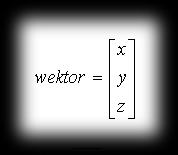
To illustrate the basic operations on vectors, we’ll use a special column notation. For example, vector w=[x, y, z] is shown as:
The sum of two vectors AB=a=[x1,y1,z1] and AD=b=[x2,y2,z2] is the vector AC=c=[x3,y3,z3] that forms the diagonal of the parallelogram ABCD, going out from point A.
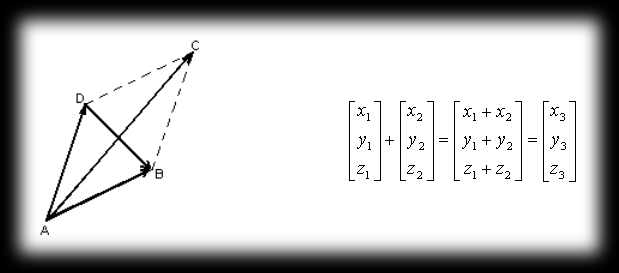
Properties of vector addition:
a + b = b + a (a + b) + c = a + (b + c) |a| + |b| >= |a + b| >= ||a| - |b||
The difference of two vectors a and b is nothing more than the sum of a and (-b). In our diagram the difference is shown by the diagonal DB.
Properties of vector subtraction:
a - a = 0 |a| + |b| >= |a - b| >= ||a| - |b||
| The product of a vector a by a scalar (α) is a vector b, collinear with vector a and having length | b | = | a | α | and orientation matching vector a. In other words, you can picture our vector a being stretched α times, while the direction and start of the resulting vector stay where vector a started. |
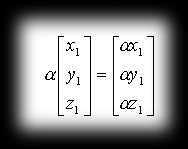
Properties of this product:
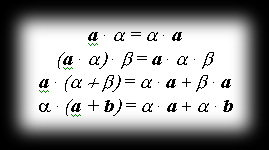
With these basic operations on the vector space defined, we can do a few more bits of vector arithmetic. One such operation is forming so-called linear combinations. A linear combination of vectors a, b, …, d with corresponding scalar coefficients α, β, …, δ is the vector l = αa + βb + … + δd. Linear combinations of vectors can be used to describe lots of things and can also be applied to represent curves and surfaces in space.
| Further on, we’ll need to know the concept of the length of a vector. It’s nothing more than a scalar quantity written as | a | and defined as: |
| a | = (x² + y² + z²)^(1/2) |
Dot Product
The dot product a·b of vectors a=[x1,y1,z1] and b=[x2,y2,z2] is defined as the number:

such that:
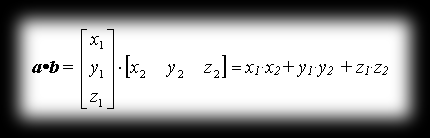
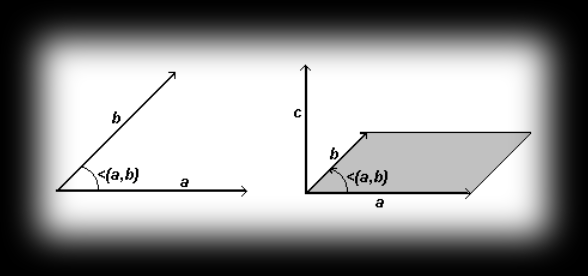
Here the angle ∠(a,b) is the angle between vectors a and b, brought to a common starting point (see the diagram). On top of that, the dot product of vectors a and b equals the length of the projection of b onto a, assuming that a is a unit vector.
| One practical use of this product is for normalising vectors. That’s for generating vectors of length 1. To normalise vector a we work out a0 = a/ | a | . The resulting vector is a unit vector. I’ll show another practical use once we know what the cross product is. |
The dot product is:
- symmetric: a·b = b·a
- non-degenerate: a·a = 0 only when a = 0
- bilinear: a·(b + αc) = a·b + α(a·c)
Cross Product
The cross product a×b of vectors a=[x1,y1,z1] and b=[x2,y2,z2] is a vector c with the following properties (see the diagram next to the one for the dot product):
- vector c is perpendicular to both vectors a and b
-
the length of vector c is c = a b sin∠(a,b) and equals the area of the parallelogram built on vectors a and b as sides, and its direction is perpendicular to both vectors (the previous property), with c oriented so that vectors a, b, c form a right-handed system - the ordered triple of vectors a, b and c is positively oriented, i.e.
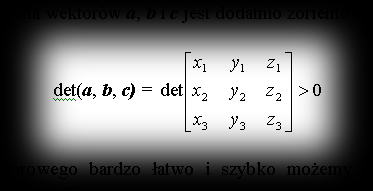
The components of the cross product can be worked out very easily and quickly by computing the determinant of the following matrix:
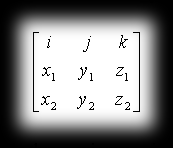
Using basic algebra we know the determinant of an n×n matrix is defined in terms of the determinants of smaller matrices. Let x³ denote the determinant of a 2×2 matrix that we get by removing the first row and the i-th column from a 3×3 matrix, then:
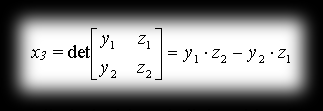
Going through it the same way, we arrive at the linear combination of variables i, j, k giving the vector a×b:
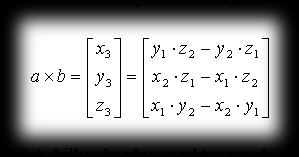
The cross product has a heap of very practical uses. It can be used, for example, to work out the equation of the plane of a polygon, or it can serve indirectly to compute the averaged unit normal vectors at the vertices of a triangle, needed to work out the intensity of light falling on it. What’s more, when found for the plane of a triangle (it’s then the normal vector) it can be used to determine the visibility of our face (triangle), depending on the direction it’s pointing. So if it’s facing the viewer, the element is visible; whereas if its z component comes out negative, in many cases we can skip drawing such a face (so we have less to draw with the same visual result — beauty).
Practical Examples of Using the Cross and Dot Products
When describing the cross product I gave a very handy way of using it to determine the visibility of faces (i.e. whether they’re turned away from or facing the viewer). In this section I wanted to show two more very handy ways of using these products in computer graphics. The methods I’ll show here might be a bit general, but with a bit more thought you can stretch them to get fast and efficient effects on your monitor. To start with, we ought to say a few words about what the normal vector to a face and the normal vector at a vertex are. These two concepts are illustrated in the diagram below.
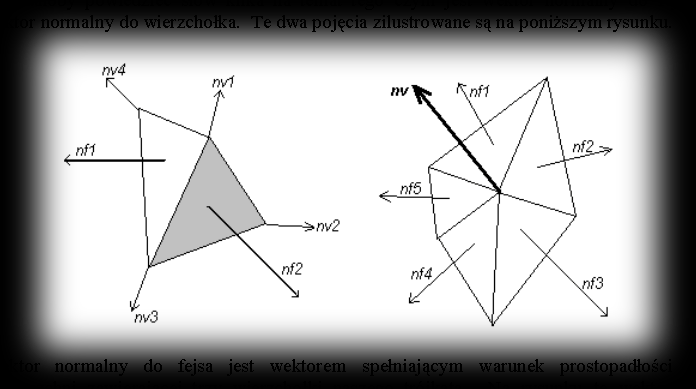
The normal vector to a face is a vector satisfying the condition of being perpendicular to the surface containing the three vertices of our triangle. In the diagram these vectors are labelled as nf1 and nf2 and can be worked out using the cross product. Direct3D requires you to supply “normal” vectors at the vertices, and using these it automatically works out the normal vector for the face contained between them (of course in the case where the face being drawn will have uniform light intensity across its surface). The “normal” vector at a vertex can be spat out automatically by some 3-D program from which we read information about our objects (e.g. 3D-STUDIO MAX), or it can be worked out by hand. The principle for working it out is simple (see the diagram too):
- first, we have to work out the normal vectors to all the faces of our object (in the diagram: nf1, nf2, nf3, nf4, nf5)
- then we pick the vertex we’re interested in and average all the normal vectors of the faces touching it. The vector worked out this way is the averaged normal vector at that vertex (nv). We can also normalise this vector, if the purpose of our calculations calls for it, and we then get the averaged unit normal vector at the vertex. The general way of computing this vector is pretty simple:
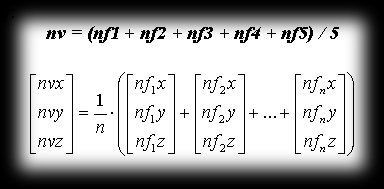
Direct3D stores info about vertices in the D3DVERTEX structure. This structure describes the position and orientation of vertices. The orientation here is tied to the normal vector at the vertex we described. A sample bit of code shows how to set the vertex position and normal vector in world coordinates.
D3DVERTEX lpWierzcholki[3];

// position in space
lpWierzcholki[0].x = 10;
lpWierzcholki[0].y = 10;
lpWierzcholki[0].z = 5;
// set the normal vector at the vertex
// we point in the negative z direction
lpWierzcholki[0].nx = 0;
lpWierzcholki[0].ny = 0;
lpWierzcholki[0].nz = -1;
// texture coordinates
lpWierzcholki[0].tu = 0;
lpWierzcholki[0].tv = 0;

// and here's another way of setting up vertex parameters
// using the D3DOVERLOADS macros
lpWierzcholki[1] = D3DVERTEX(D3DVECTOR(-10,-8,4), D3DVECTOR(0,0,-1), 0, 0);
A practical use of the products is using them indirectly to work out the light intensity of our faces. Everything here depends on the position of the light source and the orientation of the normal vector to the given triangle. Brightness is tied only to the angle theta between the direction L to the light source and the surface normal N. From basic physics we know the stream of light falling on a surface covers an area whose size is inversely proportional to the cosine of the angle theta the stream makes with N. If the light stream has an infinitely small cross-section dA, then the area cut out of the surface by the stream is dA/cos(theta). That’s why, for an incident light beam, the light flux that falls on a unit of the illuminated surface is directly proportional to cos(theta) and can be used to work out the brightness of a given face.
[picture]
That’s where we’ll use the dot product, because as we remember well:
| N | L | cos∠(L,N) = nxlx + nyly + nzlz |
and from this:
| J = cos∠(L,N) = (nxlx + nyly + nzlz) / ( | N | L | ) |
Now by tweaking the brightness scaling coefficients (a, b) we can get the colour of our face depending on the position of the light source:
colour = Ja + b
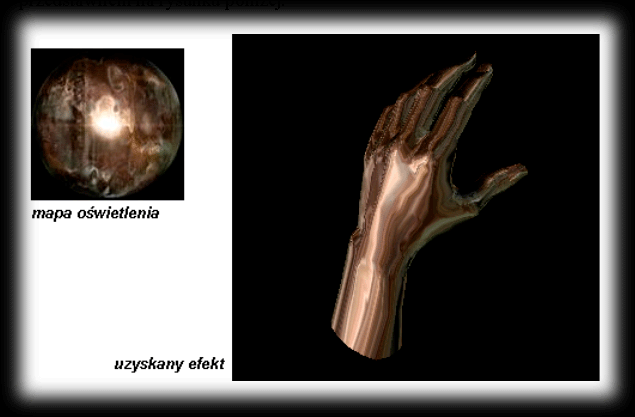
The averaged unit normal vectors can also be used to fake the most impressive shading — so-called Phong shading — or to get the effect known on the demoscene as “environment mapping”. What else we’ll need is the ability to texture, that is, the ability to cover the surface of an object with a defined pattern. The principle of this effect is pretty simple and boils down to taking the coordinates of the averaged unit normal vector at a vertex and using its x and y coordinates as texture coordinates. These coordinates have to be pre-scaled and shifted accordingly with respect to the texture coordinates. The centre of the bitmap (texture) is treated as the origin of the mapping coordinate system. That’s also where we have the highest colour intensities. Having worked out the values of the unit normal vectors at the vertices, we can already work out the coordinates of the points on the texture that we assign to that vertex:
tu = (texture_size_in_x/2) + (texture_size_in_x/2) * vertex_normal.x
tv = (texture_size_in_y/2) + (texture_size_in_y/2) * vertex_normal.y
We do the same with every vertex of our object, and then we draw the object. The effect we get this way looks very realistic. The bitmap to use as the texture can be cooked up with a trick in any rendering program. We make a plane there and place a light source right in front of that plane (perpendicular, pointing at its centre). On top of that we can throw a texture onto that plane. As a result we get an image of concentric brightening, which we crop to the sizes we need (e.g. 128×128) and use as a texture in our program. The visual effect we get is shown in the diagram below.
Shading
In Direct3D we have two shading modes available — the so-called Flat Shading and Gouraud Shading. They let us get the appropriate colour intensity for the rendered scene depending on the light sources used and their position in space.
Flat Shading
This is a model based on shading with a constant value, also called flat shading. Such a model roughly matches the situation where both the light source and the observer are far from the object. The constant lighting intensity of faces can be worked out using the method given a few pages back, but Direct3D does the calculations itself.
The shading mode can be set by calling IDirect3DDevice7::SetRenderState. We set the dwRenderStateType parameter to D3DRENDERSTATE_SHADEMODE. The second parameter is a 32-bit enumeration parameter (D3DSHADEMODE):
typedef enum _D3DSHADEMODE {
    D3DSHADE_FLAT = 1,
    D3DSHADE_GOURAUD = 2,
    D3DSHADE_PHONG = 3,
} D3DSHADEMODE;
To set the current shading mode to flat shading you need to run the following bit of code:
// set flat shading mode
// lpDev is the current pointer to IDirect3DDevice
hr = lpDev->SetRenderState(D3DRENDERSTATE_SHADEMODE, D3DSHADE_FLAT);
if (FAILED(hr))
{
    // here's the code for our error-handling function
}
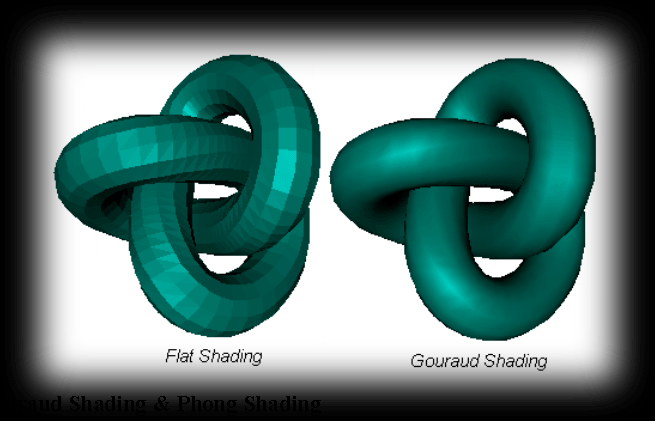
This method shouldn’t be used for visualising flat polygons approximating curved surfaces. That’s because the so-called Mach effect crops up — places where the curve of surface lighting intensity or its derivative has discontinuities appear brighter or darker, depending on the lighting of their surroundings. This “jumping” lighting phenomenon shows up near all the common edges of two neighbouring faces with different brightness (the dark face looks darker, the bright one brighter). The Mach effect is caused by horizontal inhibition of receptors in the eye (more info in FOLE94). One way of avoiding the impression of discontinuous light intensity is to interpolate it. That sort of solution is the second method — Gouraud shading.
Direct3D in Flat Shading mode takes as the base colour for the whole triangle the colour attached to its first vertex — the other two don’t matter.
Gouraud & Phong Shading
Gouraud shading is based on the principle of interpolating lighting values from the triangle’s vertices across its whole surface. For each vertex of a polyhedral object we have to know the averaged unit normal vector, which is used to work out the light intensity at that vertex. The lighting intensity of points inside our face is worked out by linear interpolation of light intensity along the edges, and between them — along the horizontal lines we use to scan the polygon. Modern 3D cards offer hardware support for this method.
And just like before, to set the current shading mode to Gouraud shading we need to run:
// set Gouraud shading mode
// lpDev is the current pointer to IDirect3DDevice
hr = lpDev->SetRenderState(D3DRENDERSTATE_SHADEMODE, D3DSHADE_GOURAUD);
if (FAILED(hr))
{
    // here's the code for our error-handling function
}
In Direct3D, Gouraud shading is set as the default shading mode.
Of course, this method isn’t without its faults either. It shows up especially when we place a light source right in front of a surface. From our own world we’re used to the idea that we should get concentric rings showing the lighting intensity on that surface, but that’s not what happens. The effect is ruined by the linear interpolation of light intensity. Bui-Tuong Phong proposed that instead of interpolating the lighting intensity, you do the same with the normal vectors to the surface at the points being examined, and then work out the lighting values relative to them. The number of calculations in the Phong method is a fair bit higher than in the Gouraud method, but even though you do indeed get better images, we won’t be using it. Don’t forget, we want to get something in real time, not muck about with time-consuming calculations for every point. On top of that we want to push our 3D hardware to its limits, and as far as I know, popular 3-D cards don’t support the Phong shading model. But with hardware texturing on hand, we can have a fiddle with faking this method (see earlier).
Matrices and Transformations
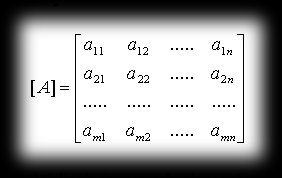
A matrix is nothing more than an arrangement of mn numbers laid out in a rectangular table with m rows and n columns, which we denote:
In Direct3D a matrix is a table of 16 numbers (called elements) laid out in 4 columns and 4 rows. To represent points in 3D space we use homogeneous coordinates, so instead of representing a point as (x,y,z), we represent it as (x,y,z,1). This is done to unify the matrix notation of transformations such as translation, scaling and rotation in 3D space. I’ll get a bit ahead of myself and say that the matrix representations of the translation, scaling and rotation transformations look like this:
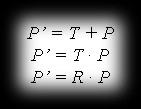
Translation, as you can see here, is handled a bit differently from scaling and rotation. We’re aiming for these three transformations to work in a uniform way, so they can be easily combined. That’s precisely why we express points in homogeneous coordinates, so we can treat our three transformations as multiplications.
Direct3D stores info about the elements of a matrix in the D3DMATRIX structure. It’s handy here to use operators, which you get access to by defining D3D_OVERLOADS before including the D3DTypes.h header file. Thanks to that solution we can conveniently refer to individual elements of the matrix by the appropriate row and column numbers, which represent access to the number (matrix element) we need. The convention here is the one familiar from various programming languages — indices start from 0, not from 1 (as we know it from maths), e.g.
// define matrix Matrix
// D3D_OVERLOADS is defined
D3DMATRIX Matrix;

// write 1 into the second row and third column of Matrix
Matrix(1,2) = 1.0f;
// write 2 into the third row and first column of Matrix
Matrix(2,0) = 2.0f;

// another way of referring to a specific row and column:
// write 5 into the first row and first column
Matrix._11 = 5.0f;
// write 1.5 into the fourth row and second column
Matrix._42 = 1.5f;
Identity
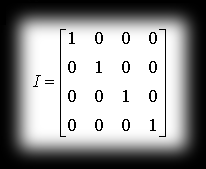
The identity matrix is a matrix in which all elements off the diagonal are zeros, and on the diagonal (from the top left corner) there are just ones. The result of multiplying any matrix by the identity is the same matrix.
Example of an identity matrix:
Translation
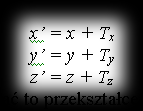
Translation by the vector [Tx, Ty, Tz] of point P=P(x,y,z) gives the point P’=P(x’,y’,z’), with coordinates:
In matrix notation we can write this transformation as the equation:
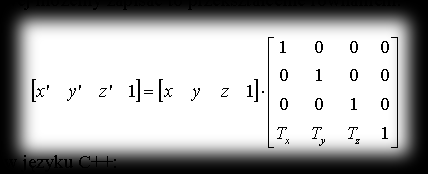
Sample code in C:
D3DMATRIX Matrix;
// first create the identity matrix
Matrix = identity_matrix();
// and now in the fourth row place the components of the translation vector
Matrix(3,0) = Tx;
Matrix(3,1) = Ty;
Matrix(3,2) = Tz;
Scaling
Scaling is defined by the formulas:
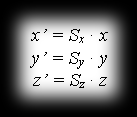
and from this the following notation comes about:
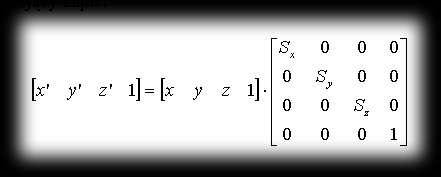
In C++ we can declare scaling_matrix as:
D3DMATRIX scaling_matrix = {
    D3DVAL(scale), 0, 0, 0,
    0, D3DVAL(scale), 0, 0,
    0, 0, D3DVAL(scale), 0,
    0, 0, 0, D3DVAL(1)
};
Rotations
Here we use the left-handed coordinate system. As we remember, in this system rotations happen in the direction of clockwise motion, but only when we’re looking from the positive end of the axis towards the origin of the coordinate system. Directly from this convention follows:
| AXIS OF ROTATION | DIRECTION OF POSITIVE ROTATION |
|---|---|
| x y z | y to z z to x x to y |
Rotation around the X axis
The image of point P=P(x,y,z) after rotation by angle φ around the x axis is the point P’=P’(x’,y’,z’), where:
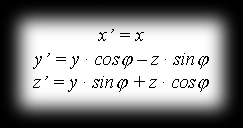
so in matrix notation:
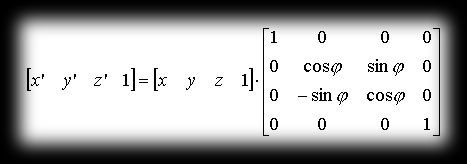
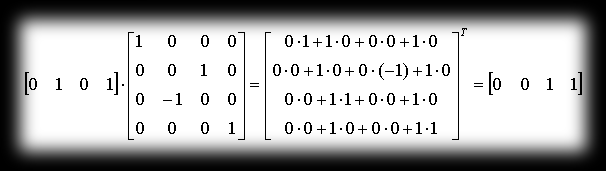
You can very easily check how our matrix behaves. Take the point with coordinates P=P(0,1,0) and rotate it around the x axis by a positive angle π/2 — as a result of this operation we should get the point P’=P’(0,0,1) (we’ll use matrix multiplication here, which will be described shortly).
Rotation around the Y axis
Rotating point P=P(x,y,z) by angle φ around the y axis, we get the point P’=P’(x’,y’,z’) with coordinates:
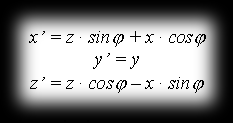
so as a matrix this transformation is written:
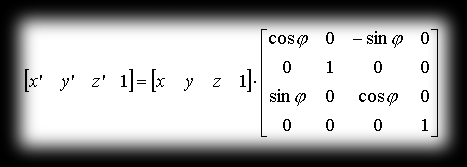
Checking the correctness of this matrix follows similar rules as for rotation around the x axis.
In C++, in turn, we can fill in this matrix as follows:
D3DMATRIX Matrix;
// first create the identity matrix
Matrix = identity_matrix();
// and now in the fourth row place the components of the translation vector
Matrix._11 = cos(fi);
Matrix._13 = -sin(fi);
Matrix._31 = sin(fi);
Matrix._33 = cos(fi);
Rotation around the Z axis
Meanwhile, after rotating point P=P(x,y,z) by angle φ around the z axis, the point P’=P’(x’,y’,z’) comes about with coordinates:
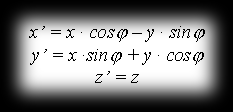
This matches the equation (in matrix notation):
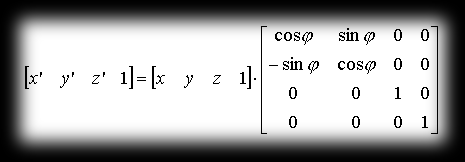
Matrix Multiplication
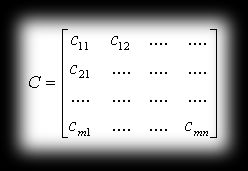
Matrix multiplication is one of the basic operations we do on matrices. It boils down to scalar multiplication and summation of the corresponding elements of rows and columns of both matrices. So, given on input matrix A with dimensions m×r and B with dimensions p×n, we get as a result matrix C, which will have m rows and n columns. The necessary condition for being able to form the product A*B is that the number of columns in the first matrix has to equal the number of rows in the second matrix (i.e. r has to equal p). The resulting matrix C has elements defined by the formula:
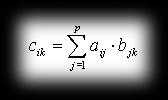
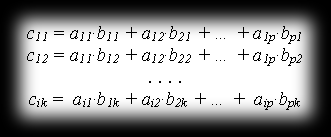
You can picture this operation roughly like this: for each row of the first matrix and each column of the second, the matching elements get multiplied, and the whole lot is summed, forming an element of the new matrix that way. It’s as if we were thinking of the columns of B as the vectors B1, B2, …, Bp and the rows of A as the vectors A1, A2, …, Ar, so that cik would equal Ai*Bk.
Matrix C:
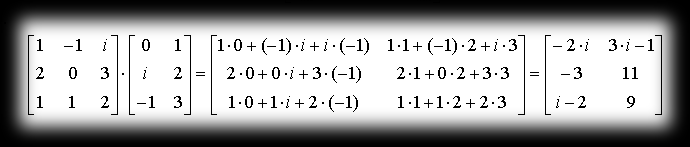
e.g.:
The product of matrices has the following properties:
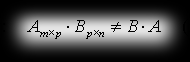
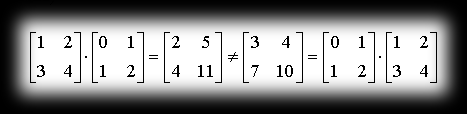
- it’s not commutative (the product B*A doesn’t even have to be defined)
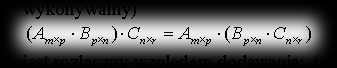
- the next property we write as:
- it’s distributive with respect to addition: (A+B)C = AC + B*C
e.g. (the first property)
A sample function performing the operation of multiplying two matrices in C++ would look like this:
// matrix multiplication operator
D3DMacierz operator* (const D3DMacierz& A, const D3DMacierz& B)
{
    WLK_D3DMatrix ret;

    // the starting point should be the zero matrix
    ZeroMemory(&ret, sizeof(ret));

    float* pA = (float*)&A;
    float* pB = (float*)&B;
    float* pR = (float*)&ret;

    // main loop — doing the multiplying :)
    for (WORD i=0; i<4; i++)
        for (WORD j=0; j<4; j++)
            for (WORD k=0; k<4; k++)
                pR[4*i+j] += pA[4*k+j] * pB[4*i+k];

    return ret;
}
Matrix Transposition
Transposing a matrix is an operation that boils down to swapping the rows and columns of a matrix. Transposing a matrix A with dimensions m×n we get matrix B with dimensions n×m such that bik = aki. In maths notation this operation is marked with the letter T.
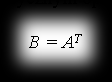
It’s best illustrated by an example:
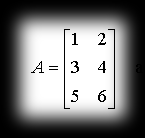
and after transposing:
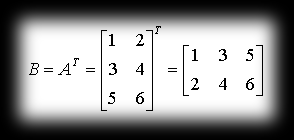
We’ve come to a crossroads. The topic of matrices hasn’t been wrapped up here — we ought to add a few more words about the determinant of a matrix, inverting matrices, and composing (concatenating) matrices. The text presented here was meant to be just an intro to a book I once intended to write, but the project kind of fell over a bit. The basics shown here, though, are universal, and I hope they’ll come in handy for someone someday. If anyone has any questions, gripes or requests, please send them to my email. Maybe the text will be revived if it ends up being popular :))).
Tomash /Warlock/ Bednarz
Enjoy Reading This Article?
Here are some more articles you might like to read next: